Product: Snowflake NativeApp
Version: 2025.1.X (tested on 2025.1.12)
Author: Pranoti Kotangale
Need
Snowflake NativeApp framework requires the user accessing such application to first log into their account on Snowflake and only afterwards lets the app itself present it's own authentication screen. This creates an unnecessary steps for the end users when accessing an application. For Semarchy NativeApp you might want to configure SSO in the way that there is only one login screen for the users.
Summarized Solution
This article explains how to configure Okta as an OIDC identity provider for a Semarchy Native App instance running on Snowflake, so end users can authenticate through Okta SSO instead of - or in addition to - native Snowflake/Semarchy credentials.
It also describes how, once Okta SSO is verified, to bypass the Native App's own login screen so that Snowflake and Okta SSO are the only logins required.
We use Okta as example only, any other supported SAML/OIDC provider can be used as long as it's the same you are using for Snowflake SSO in your organization.
Detailed Solution
Scope / Use Case
This configuration was set up to test whether Semarchy Native App login can rely entirely on Okta SSO, with Snowflake as the only other required login.
1. Prerequisites
Before requesting an Okta SSO configuration for a Semarchy Native App instance, gather the following to share with your IT/Infra team, who will use it to create an OIDC app registration:
- Snowflake account the Native App is running under (e.g. SEMARCHY_PROF_SVCS).
- App instance name- a clear identifier to use in Okta (e.g. PS_SANDBOX_PRANOTI). Indicate whether the instance is a Sandbox, PoC, or Demo.
- Redirect (sign-in) URL for the app instance, e.g. https://mwxl4m-qirxmwr-semarchy-prof-svcs.snowflakecomputing.app/semarchy/login/oauth2/code/OKTA-OIDC
- List of users to be assigned to the Okta app and enabled for SSO authentication.
2. Information Required from IT/Infra
Once the OIDC app registration is created, the IT/Infra team should share the following details, required for the SSO setup:
- Client ID
- Client Secret
- Issuer Identifier
3. Configuration Steps (Native App Side)
In the Semarchy Native App admin/config area, enter the OIDC provider details:
- Issuer Identifier
- Client ID
- Client Secret
- Redirect URI (already present by default - do not update it. Share this value with your IT team to register in Okta, as described in Prerequisites).
Then:
- Save/apply the configuration.
- Confirm the Native App's outbound network rule allows egress to the Okta domain (see Egress Network Rule for Okta SSO below).
- Test login via the Okta Apps Dashboard (https://<your-org>.okta.com) and/or directly via the app's login page.
4. Egress Network Rule for Okta SSO
When setting up Okta SSO for any Semarchy Native App instance on Snowflake, always confirm the following as part of setup:
- Identify the Native App's egress network rule (naming pattern: <APP_INSTANCE_NAME>_MANDATORY_EGRESS_ACCESS_NETWORK_RULE).
- Add the Okta issuer's host (e.g. semarchy.okta.com, or your org's Okta domain) to that network rule.
- Re-test SSO login after the network rule change.
5. Verification
- Log in via the Okta Apps Dashboard and confirm redirection to the Native App completes without error.
- Confirm the Native App shows an authenticated session for the test user.
6. Bypass the Native App Login
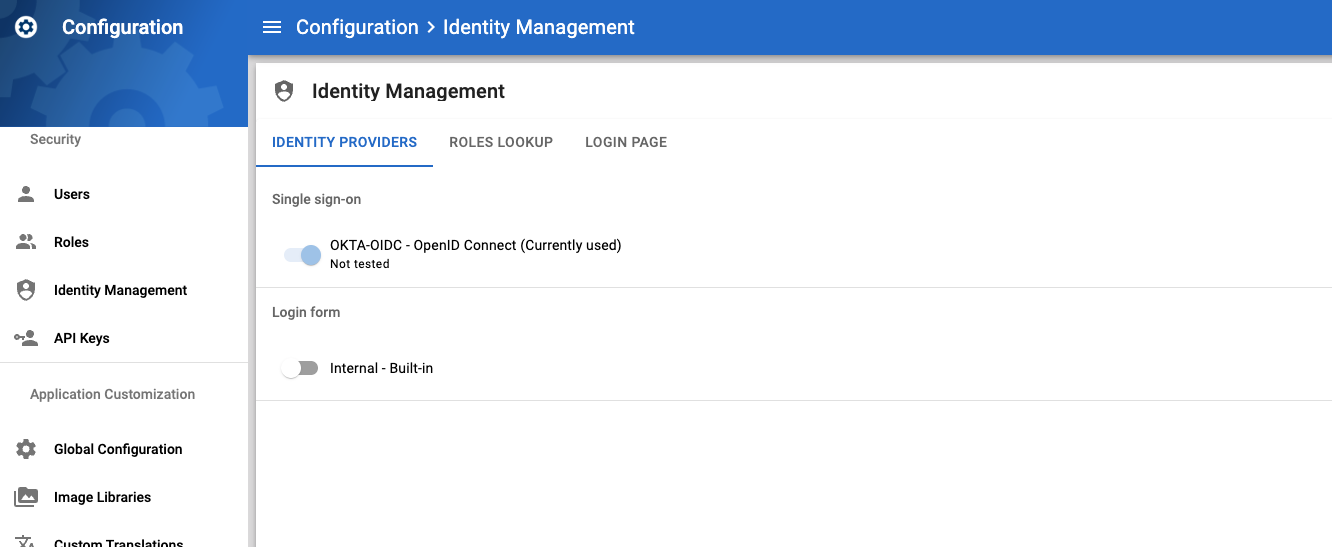
To bypass the Native App's own login screen once Okta SSO is verified, disable the default IDP and keep the Okta IDP switched ON. Users will then authenticate exclusively through Okta SSO.