
Product version: 2025.1.X (tested on 2025.1.11)
Need
Semarchy NativeApp supports Snowflake Managed PostgreSQL for both repository storage and data location. The full installation procedure for such case is a combination of Snowflake and Semarchy actions and therefore is scattered across different links. The goal of this article is to provide the full procedure and avoid jumping between links.
Summarized Solution
To install Semarchy NativeApp with a Managed PostgreSQL connectivity you need to create an ingress rule that authorizes Snowpark IPs and create relevant objects in the Managed PostgreSQL instance.
.
Detailed Solution
References
https://semarchy.com/doc/semarchy-xdm/xdm/latest/Install/snowflake/install-on-snowflake.html
Prerequisites
The user setting this up requires the following privileges on the Snowflake account:
- Rights to install a NativeApp (typically IMPORT SHARE and CREATE DATABASE)
- CREATE POSTGRES INSTANCE to create Snowflake Postgres instance if not exist
- OWNERSHIP or MANAGE for each given Snowflake Postgres instance
- CREATE NETWORK RULE, CREATE NETWORK POLICY on the account for network configuration
- GRANT OWNERSHIP for an EAI to be able to modify the default one created by xDM during the installation
Step-by-step
Step 1. Prepare Network Rules
For the complete configuration, two incoming connections must be allowed on the Managed PostgreSQL instance:
- access this instance from a local or shared installation of a DB manager software (pgAdmin, DBeaver or other) to configure the schema
- access from the Snowflake internal IPs
For this you need to have an Ingress rule of type IPV4 that includes relevant IPs.
A. Manual approach
First get the IPs to allow:
-- Snowflake IPs --
SELECT
  value:"ipv4_prefix"::VARCHAR AS ip_cidr_range,
  value:"effective"::TIMESTAMP AS effective_at,
  value:"expires"::TIMESTAMP AS expires_at
FROM TABLE(
  FLATTEN(INPUT => PARSE_JSON(SYSTEM$GET_SNOWFLAKE_EGRESS_IP_RANGES()))
);

-- Your public IP --
SELECT  current_ip_address();
SET IP_TO_ALLOW = current_ip_address() || '/32';
SELECT $IP_TO_ALLOW;
Note: if you organization has a standard way of accessing a Snowflake Managed PostgreSQL instance to perform SQL commands (for example, a DB management tool running in a secured shared environment), you can skip the local IP in this procedure.
Create Network rule from the Snowflake UI or from the console using the following command
CREATE NETWORK RULE PS_XDM_INGRESS
    TYPE = IPV4
    VALUE_LIST  = (<LIST OF ALLOWED IPS>)
    MODE = POSTGRES_INGRESS
B. Dynamic SQL Procedure
Alternatively you can use the following procedure to get the IPs and create the network rule:
DECLARE
  ipv4_prefixes VARCHAR;
  sql_cmd VARCHAR;
BEGIN
  SELECT LISTAGG('''' || ip_cidr_range || '''', ',')
           WITHIN GROUP (ORDER BY ip_cidr_range)
    INTO :ipv4_prefixes
  FROM (
    SELECT value:"ipv4_prefix"::VARCHAR AS ip_cidr_range
    FROM TABLE(
      FLATTEN(INPUT => PARSE_JSON(SYSTEM$GET_SNOWFLAKE_EGRESS_IP_RANGES()))
    )

    UNION

    SELECT CURRENT_IP_ADDRESS()::VARCHAR || '/32' AS ip_cidr_range
  );

  sql_cmd := 'CREATE OR REPLACE NETWORK RULE PS_XDM_INGRESS ' ||
             'MODE = POSTGRES_INGRESS ' ||
             'TYPE = IPV4 ' ||
             'VALUE_LIST = (' || ipv4_prefixes || ')';

  EXECUTE IMMEDIATE :sql_cmd;

  RETURN sql_cmd;
END;
Step 2. Create Network Policy
Now create a Network Policy that references this network rule:
CREATE NETWORK POLICY PS_XDM_INGRESS_POLICY
    ALLOWED_NETWORK_RULE_LIST = ('PS_XDM_INGRESS')
Step 3. Create Managed PostgreSQL Instance
In this example, the same Managed PostgreSQL instance will be used for both repository and data location with xDM NativeApp. If different instances are used, you will need to apply the Private Link procedure on each of them.
Create an instance using the following command. If you skipped Step 1 and are using a different way of accessing the MPG instance, you can remove or customize the NETWORK_POLICY line to reflect your own configuration:
CREATE POSTGRES INSTANCE PS_XDM
  COMPUTE_FAMILY = 'BURST_M'
  STORAGE_SIZE_GB = 20
  NETWORK_POLICY='PS_XDM_INGRESS_POLICY'
  AUTHENTICATION_AUTHORITY = POSTGRES
  POSTGRES_VERSION = 18
  HIGH_AVAILABILITY = FALSE;
Note: the compute family and storage size provided here is suitable for a development instance. For a production type deployment, use appropriate sizing based on your planned consumption. A typical production instance would have 100 GB of storage and STANDARD_2XL compute family. On production it is also recommended to enable high availability and add the following additional settings:
POSTGRES_SETTINGS = '{
"postgres:auto_explain.log_analyze" = "on",
"postgres:auto_explain.log_buffers" = "on",
"postgres:auto_explain.log_format" = "json",
"postgres:auto_explain.log_min_duration" = "1000",
"postgres:auto_explain.log_nested_statements" = "on",
"postgres:auto_explain.log_timing" = "on",
"postgres:auto_explain.log_triggers" = "on",
"postgres:auto_explain.log_verbose" = "on",
"postgres:auto_explain.sample_rate" = "1.0",
"postgres:log_statement" = "ddl"
}'
Note: the compute family and storage size provided here is suitable for a development instance. For a production type deployment, use appropriate sizing based on your planned consumption. A typical production instance would have 100 GB of storage and STANDARD_2XL compute family. On production it is also recommended to enable high availability and add the following additional settings:
"postgres:auto_explain.log_analyze" = "on",
"postgres:auto_explain.log_buffers" = "on",
"postgres:auto_explain.log_format" = "json",
"postgres:auto_explain.log_min_duration" = "1000",
"postgres:auto_explain.log_nested_statements" = "on",
"postgres:auto_explain.log_timing" = "on",
"postgres:auto_explain.log_triggers" = "on",
"postgres:auto_explain.log_verbose" = "on",
"postgres:auto_explain.sample_rate" = "1.0",
"postgres:log_statement" = "ddl"
}'
Make sure to note the information in the access_rights column of the result returned by the initial command:
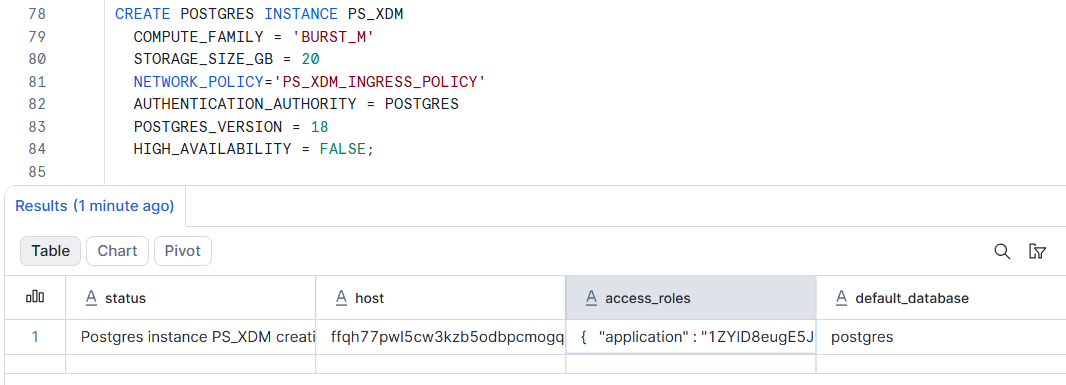 If you haven't done it, don't worry, you can regenerate credentials from the Snowflake UI.
Wait for the instance to have state READY. You can check it by running the following command
DESCRIBE POSTGRES INSTANCE PS_XDM
Copy the host name from this command output as you will use it later for the connection configuration.
Step 4. Create and configure databases for Semarchy NativeApp
For Semarchy NativeApp to install and boot properly you'll need at least the following configured on your PostgreSQL instance:
- A repository storage schema for operational metadata
- A repository user that Semarchy NativeApp will use to log in to the repository storage with write privileges
- A repository read only user that is used by built-in dashboards to access the repository storage in read-only mode
- At least one data location storage and user
As there is currently no native way to create & configure databases inside Snowflake Managed PostgreSQL, you'll need to connect a third-party DB management tool, such as pgAdmin or DBeaver.
In this example we will use DBeaver application installed locally.
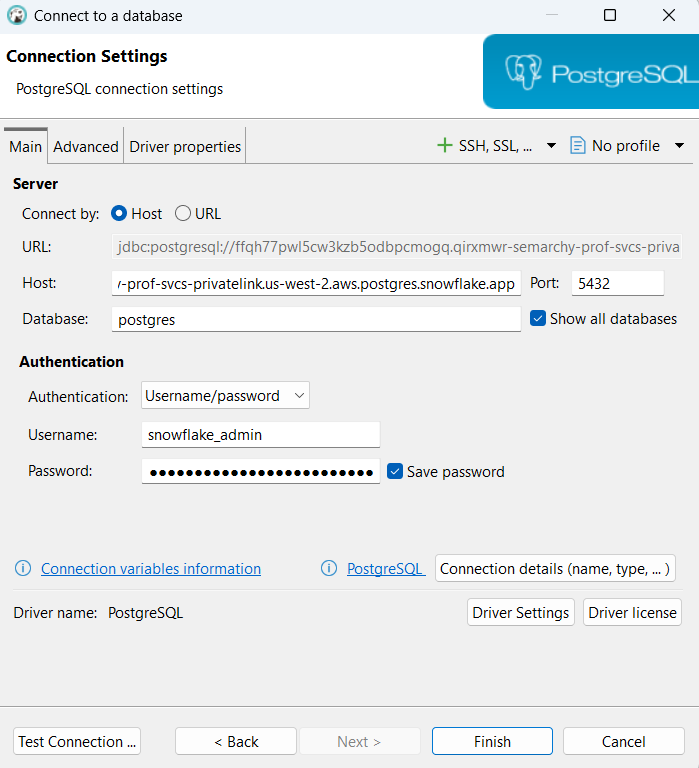
Open the DBeaver on you computer and create a new connection to your Managed PG using host name, username "snowflake_admin" and the password you've copied in previous step. Check the Show all databases checkbox to be able to create a separate database for Semarchy to use.
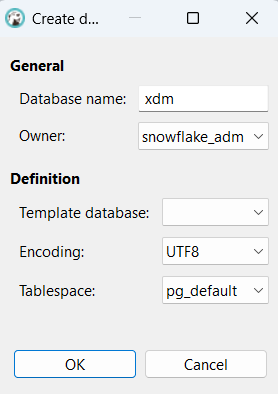
We will use this database for repository and data location storage in this example. You can keep the same approach for the production usage.
-- ADD EXTENSIONS and functions --
create schema extensions;
grant usage on schema extensions to Public;
alter default privileges in schema extensions grant execute on functions to public;
alter database xdm set search_path to "$user",public,extensions;
create extension if not exists "uuid-ossp" with schema extensions;
create extension if not exists "fuzzystrmatch" with schema extensions;

-- CREATE REPOSITORY USER AND STORAGE --
create user semarchy_repository with password 'semarchy_repository';
grant semarchy_repository to snowflake_admin WITH ADMIN OPTION;
create schema semarchy_repository authorization semarchy_repository;

-- CREATE REPOSITORY READ-ONLY USER AND GRANT ACCESS TO REPOSITORY STORAGE --
CREATE USER semarchy_repository_ro WITH PASSWORD 'semarchy_repository_ro';
grant semarchy_repository_ro to snowflake_admin WITH ADMIN OPTION;
ALTER ROLE semarchy_repository_ro SET SEARCH_PATH TO "$user", semarchy_repository,public,extensions;

-- CREATE DATA LOCATION USER AND STORAGE and GRANT ACCESS TO REPOSITORY SCHEMA --
create user customer_mdm with password 'customer_mdm';
grant customer_mdm to snowflake_admin WITH ADMIN OPTION;
create schema customer_mdm authorization customer_mdm;
GRANT EXECUTE ON ALL FUNCTIONS IN SCHEMA semarchy_repository TO customer_mdm;
ALTER ROLE customer_mdm SET SEARCH_PATH TO "$user", semarchy_repository,public,extensions;
This will create the relevant objects described in the beginning of the step taking into account specifics of the Snowflake PostgreSQL.
Important: if you name the repository write user differently from the schema that is used for repository tables, there is an additional setup needed to adjust the search path and ownership on schema. Execute the following commands if this is your case:
ALTER ROLE <REPOSITORY_USER_NAME> SET SEARCH_PATH TO <REPOSITORY_SCHEMA>,"$user",public,extensions;
ALTER SCHEMA <REPOSITORY_SCHEMA> OWNER to <REPOSITORY_USER_NAME>
Note: once this step has been successfully completed, you can remove the Ingress rule allowing your IP to access the Managed PostgreSQL instance if your company's security rules do not allow it on a standard basis.
Step 5. Get Semarchy NativeApp
You can install Semarchy NativeApp from the Snowflake Marketplace if you are trying this out or from a listing created by Semarchy.
If you are installing from Snowflake Marketplace, type "xdm" or "semarchy" to search, click on the relevant result and click Get.
If you are installing from a listing, go to Data sharing - External sharing - Shared with you, select the Semarchy listing and click Get.
In both cases, follow the configuration screens to complete the initial installation. Click Configure to move to the next step.
Step 6. Configure external access for Semarchy NativeApp
In a standard installation Semarchy NativeApp will ask you to configure & accept EAI creation for it to be able to access the Snowflake URL and Semarchy License server. Review and approve it following Snowflake on screen instructions to complete it. External Connections state must be Connected:
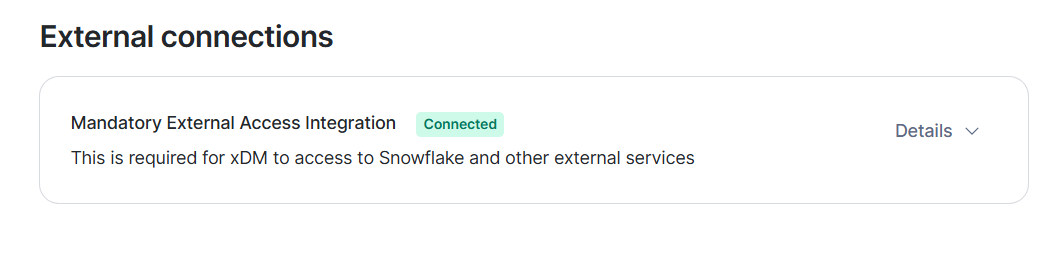
Now we need to alter this connection to add Manager PostgreSQL connectivity. Do not click Next in the setup screen. Instead exit it and switch to Snowflake Console.
The default EAI and Network rule is created in the Semarchy application configuration database.
Run the following command to retrieve created External Access Integration point name:
SHOW EXTERNAL ACCESS INTEGRATIONS
Describe it to get the default network rule name:
DESCRIBE EXTERNAL ACCESS INTEGRATION PS_SANDBOX_MANDATORY_EGRESS_ACCESS_EXTERNAL_ACCESS
Describe the network rule to get the current value_list :
DESCRIBE NETWORK RULE PS_SANDBOX_MANDATORY_EGRESS_ACCESS_NETWORK_RULE
Now we need to alter the rule to add the Managed PG host :
ALTER NETWORK RULE PS_SANDBOX_MANDATORY_EGRESS_ACCESS_NETWORK_RULE SET VALUE_LIST=('<YOUR ACCOUNT NAME>.snowflakecomputing.com','license-api.semarchy.com','<MANAGED POSTGRESQL HOST>')At the end of this step the right to reach to the Managed PostgreSQL is granted to the Semarchy NativeApp. Allow a short time for the network set up to be correctly propagated.
Step 7. Install Semarchy NativeApp
Now we can complete the installation of the Semarchy NativeApp with a Managed PostgreSQL used a repository and a data location.
Run the following commands to do it:
-- Create a setup token --
SET SEMARCHY_SETUP_TOKEN='mySecretValue';
select $SEMARCHY_SETUP_TOKEN;

-- Assemble a valid repository URL to point to the Managed PG instance and the database created for Semarchy --
SET REPOSITORY_URL='jdbc:postgresql://' || $pghost_port || '/xdm?sslmode=require';
select $REPOSITORY_URL;

-- Call the function that initializes and starts Semarchy Native App --
CALL <SEMARCHY APP NAME>.xdm_public.start_app_ext_repo(
    $SEMARCHY_SETUP_TOKEN,
    $REPOSITORY_URL,
    'semarchy_repository',
    'semarchy_repository'
);
Note: this command uses pghost_port variable that corresponds to the combination of the Managed PG host_name and port 5432; as well as the database name, Semarchy repository user and password defined in Step 3. <SEMARCHY_APP_NAME> is the name of the application that you see on your listing during the installation. You can also get it by running SHOW APPLICATIONS command and locating the Semarchy one.
Wait for the application to start. You can use the following command to check on it:
CALL <SEMARCHY_APP_NAME>.xdm_public.service_status()
Once the status is READY, you can use the following command to retrieve the service URL for connection:
CALL <SEMARCHY_APP_NAME>.xdm_public.xdm_server_url();
Semarchy NativeApp is now accessible on the <xdm_server_url>/semarchy.
Open it in your browser and complete the application set up by following the onscreen instructions. Note that you will need the SEMARCHY_SETUP_TOKEN value for it.
If the application is not accessible, check the server logs using
CALL <SEMARCHY_APP_NAME>.xdm_public.xdm_server_logs();