
Need
When a main process has multiple subprocesses, the failure of even a single subprocess can lead to the entire main process terminating with an error. This article outlines strategies to manage such scenarios, allowing the main process to either continue execution despite subprocess failures or to gracefully log errors while still indicating an overall failure.
Summarized Solution
To ensure a main process continues execution even if a subprocess fails, or to catch errors in logs for failed subprocesses, follow these steps:
Utilize “Anyway” links: replace “Successful” links with “Anyway” links between the failing subprocess and its dependent actions to ensure the flow continues.
Employ the
getErrortool: integrate thegetErrortool within your process to identify and manage errors from subprocesses.Configure
getErrorfor logging: set up thegetErrortool to capture and store error details in a designated log or database for auditing and analysis.
Detailed Solution
This section provides a step-by-step guide to implement the described solutions.
Step 1: Use “Anyway” link instead of a “Successful” link.
When using the “Successful” link, if an operation relies on the successful completion of two or more subprocesses, a failure in any one of these subprocesses will prevent the dependent action from starting. This will cause the entire session to end in an error.
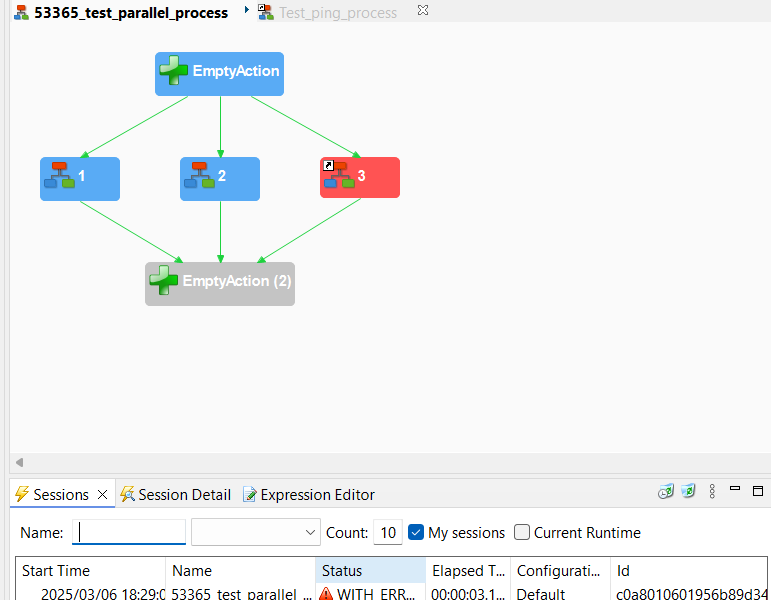
In the image above, you can observe that subprocess3 fails, and as a result, the dependent action does not initiate, leading to a session error.
To circumvent this behavior and ensure that the dependent action runs regardless of subprocess failures, you can use an “Anyway” link instead of a “Successful” link. This allows the process flow to continue even if a preceding subprocess encounters an error.
You can change the Link to Anyway Link by dragging and Dropping the Link from side palate to the particular action step.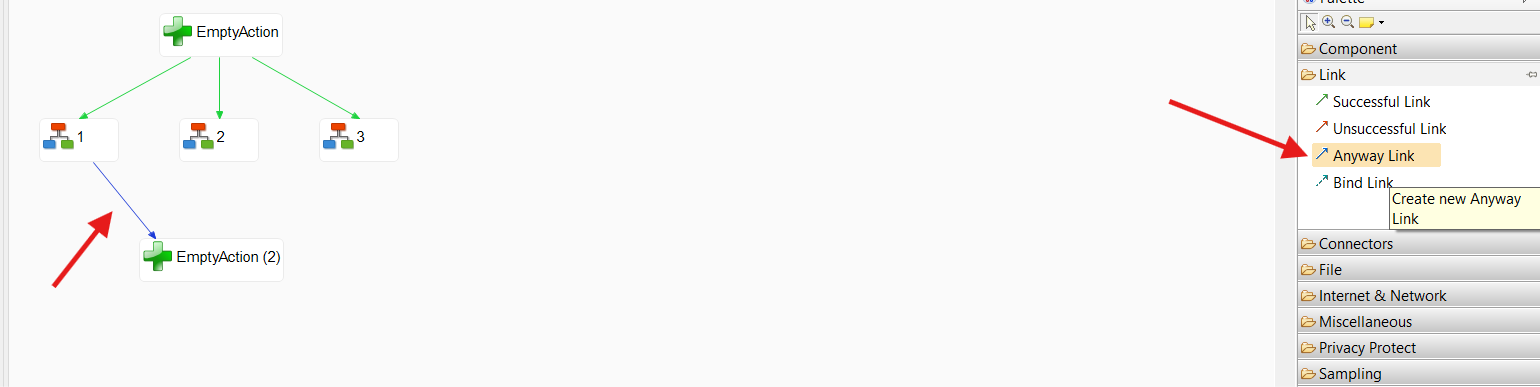
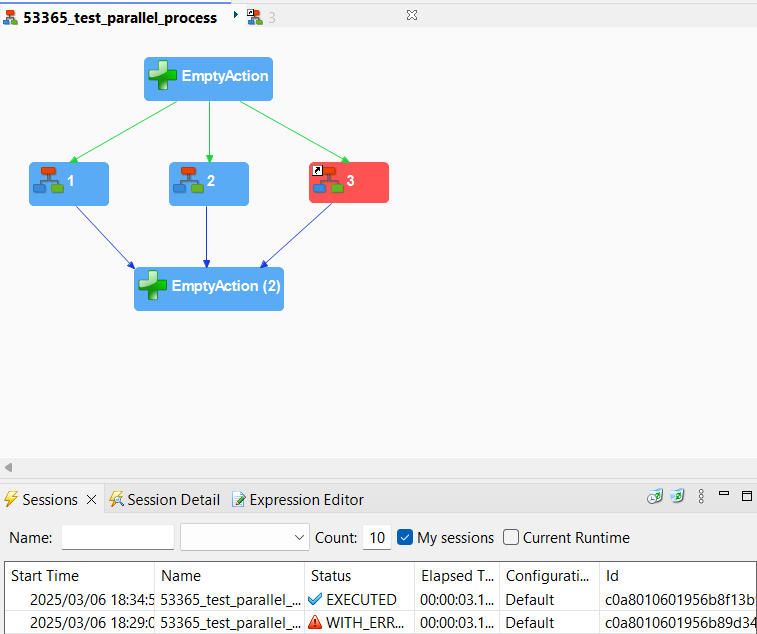
In the image above, you can see that even though subprocess3 failed, the dependent action completed successfully, and the overall session also executed without error.
Step 2: Use the getError tool in the process.
After implementing “Anyway” links, your dependent actions and overall session will execute successfully, even if one or more subprocesses fail.
However, you might still need to identify which subprocess failed, and perhaps you desire the session to register as a failure in such cases. For this purpose, you can utilize the getError tool.
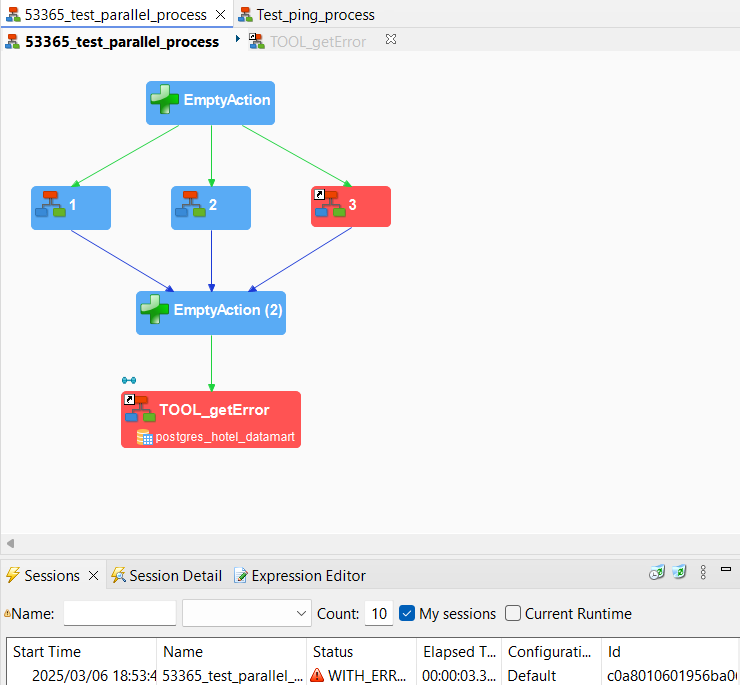
In the image above, you can observe that subprocess3 fails. By incorporating the getError tool, the session is configured to fail, and the error details are captured.
Step 3: Configure the getError tool to catch the error in the logs.
To configure the getError tool within your process and capture error details, follow these steps:
Drag and drop the getError tool onto your process canvas.
Connect the
getErrortool to the relevant subprocesses from which you want to catch errors.
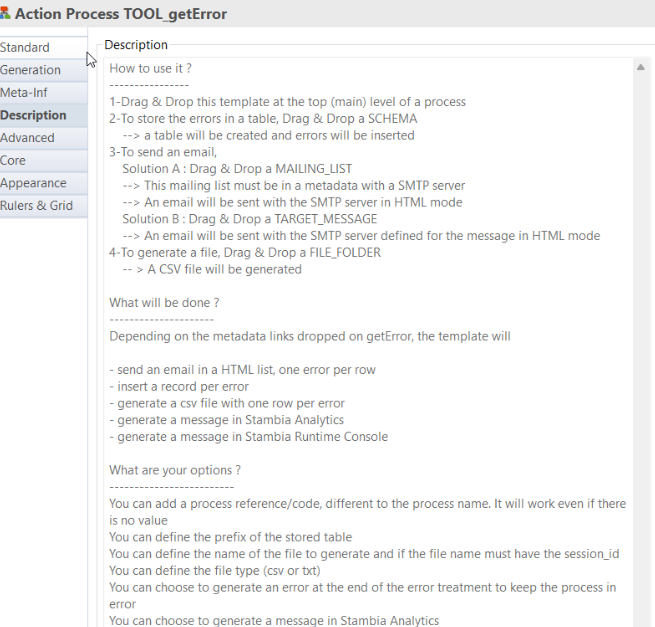
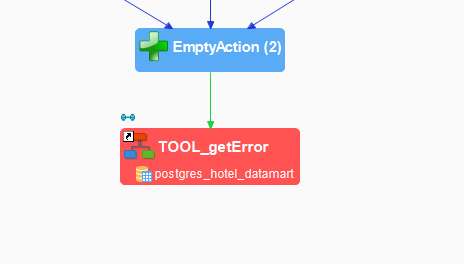
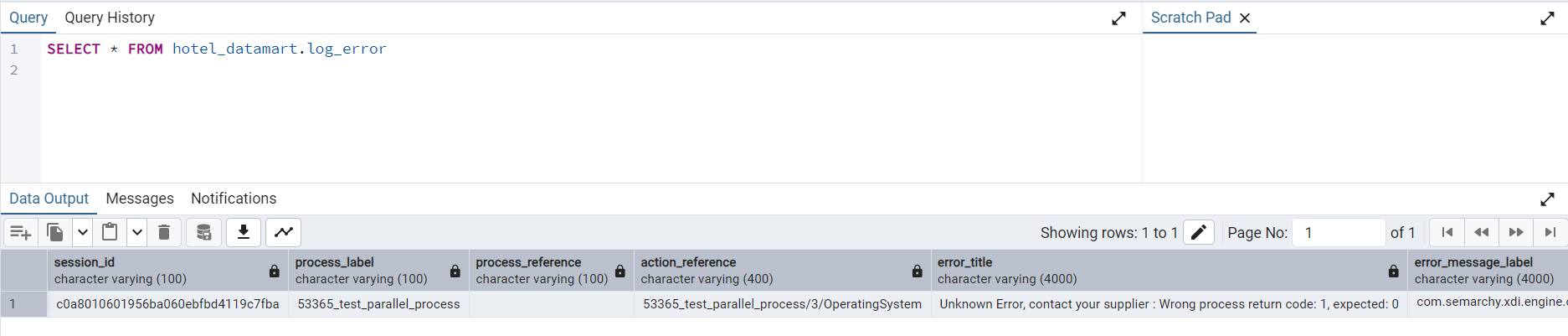
For instance, in this example, we have configured the getError tool to store and view errors in a table within a PostgreSQL schema.
The getError tool automatically creates a table named log_error (or whatever name you specify) with all the relevant error details in the PostgreSQL schema.
Note-:
You can configure the getError tool to store errors in various formats and locations, such as text files, other database types, or even send notifications, depending on your system's capabilities. The getError tool is provided as an example but it is not official hence it is not supported one must be careful to use this.
You can configure the getError tool to store errors in various formats and locations, such as text files, other database types, or even send notifications, depending on your system's capabilities. The getError tool is provided as an example but it is not official hence it is not supported one must be careful to use this.
The getError tool used in this example is attached as: TOOL_getError.proc
You can dowload and copy/paste in your workspace.