Need
Business applications often require dashboards to adapt dynamically to the connected user. Depending on the user’s role or profile, the same dashboard should display different data scopes (such as brands, products, or countries) without duplicating dashboards or manually configuring filters for each user.
The challenge is to control dashboard parameter values centrally and automatically, whether the parameter expects a single value or multiple values, while keeping configuration manageable and user-friendly in Semarchy xDM.
Summarized Solution
Dashboard parameters are used to dynamically control the data displayed to users based on predefined values or user roles. Parameters are first defined in the Dashboard Builder, then assigned and managed in the Application Builder.
For simple scenarios, parameter values can be statically assigned so that different users see different filtered data on the same dashboard. For more advanced scenarios, parameter values can be driven by user roles stored in a dedicated table, with database functions used to populate role selections dynamically and apply the appropriate data filters at runtime.
This approach enables flexible, role-aware dashboards without duplicating dashboard definitions, while keeping configuration centralized and easy to maintain.
Detailed Solution
USE CASE #1 - Single value assignation
- In the dashboard properties, define the needed parameters and save. In this example, we want to show specific brands and items from specific country:

App builder configuration
- Now go to the dashboard configured in the application builder folders and actions and browse to the Dashboard Parameters tab:

- Click on Add New Dashboard Parameters:

- Here we will add the dashboard parameters that we previously created in the dashboard properties.
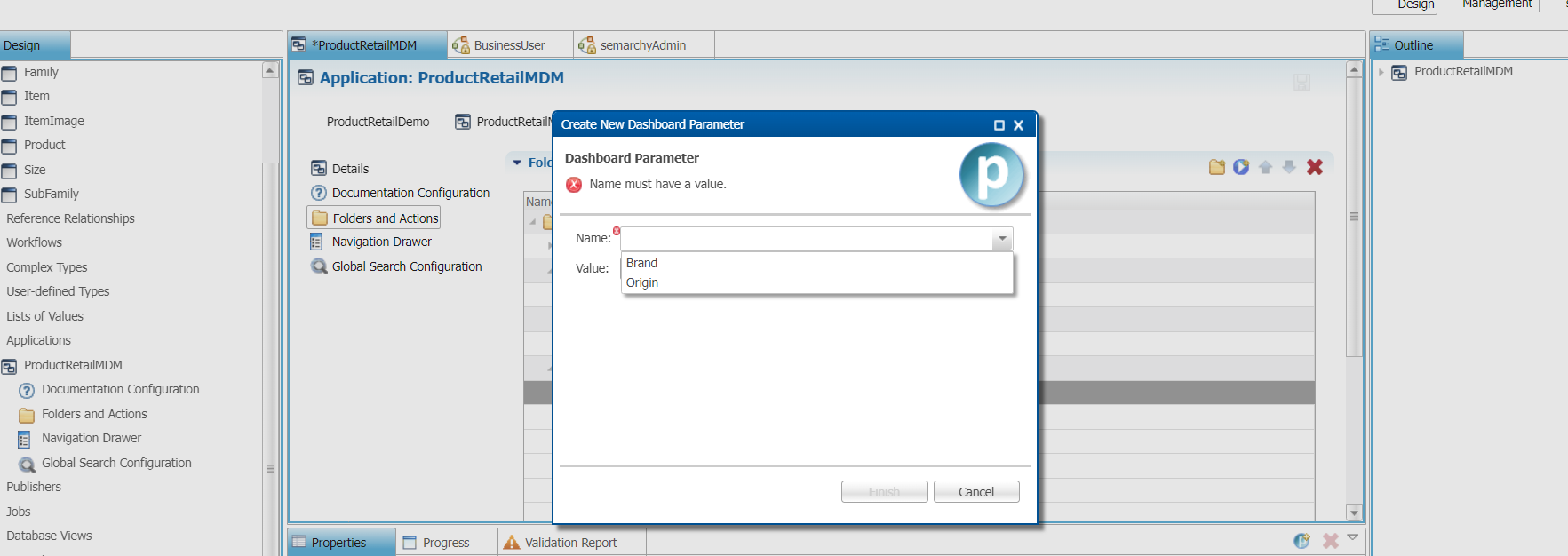
- Now let's define values for each parameters:
- For the brand:

- For the origin:

- For the brand:
- Save your model and deploy it.
Application test
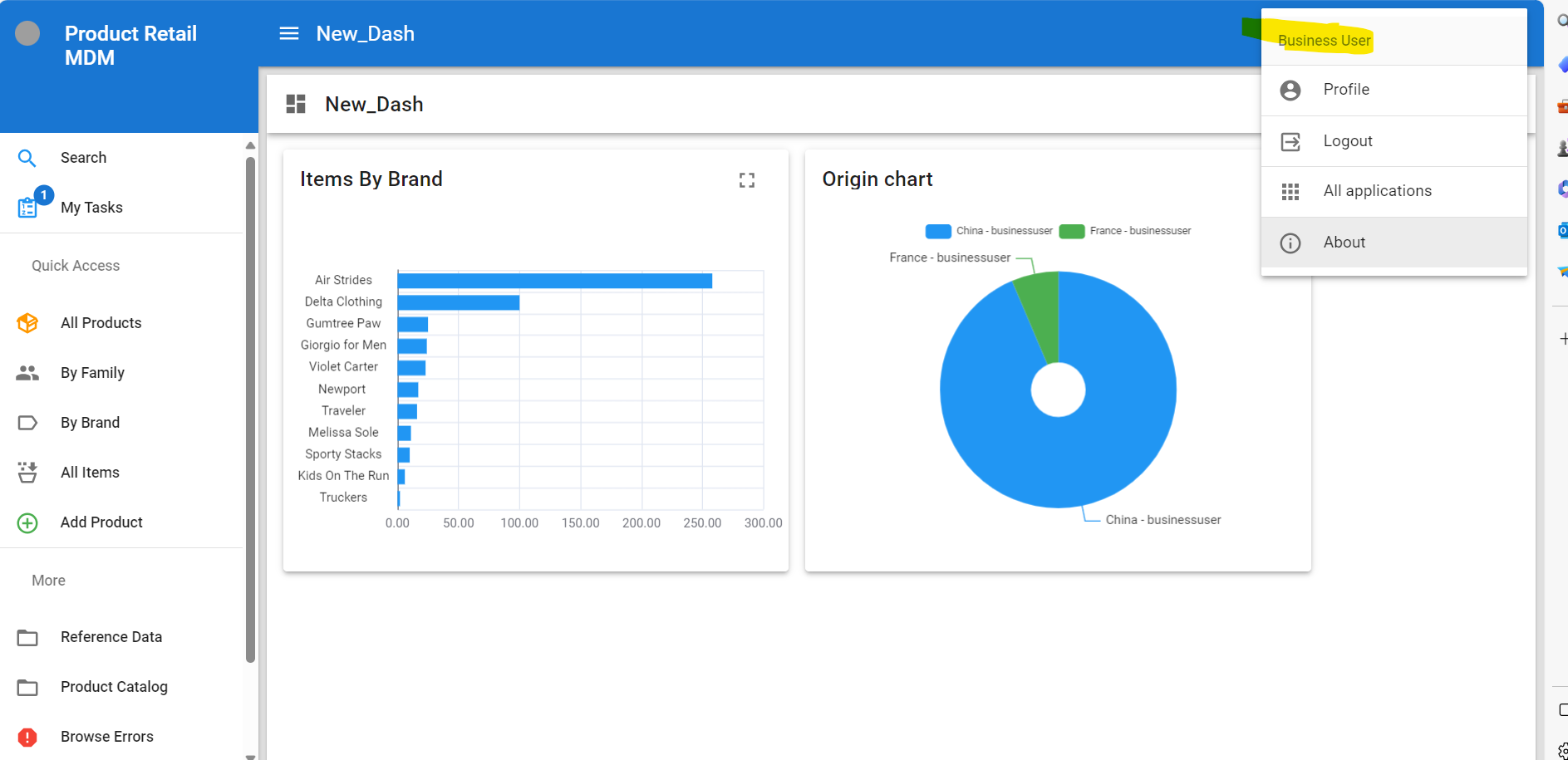
- Login as the desired user (in our case, BusinessUser).
- Click on the product metrics and check that the charts appear as set in the dashboard parameter's (related country and brand):

- Login as another user (in our case, semarchyAdmin).
- Click on the product metrics and check that the charts appear as set in the dashboard parameter's (related country and brand):

USE CASE #2 - Multiple values assignation
Prerequisites:
To display the needed param value according to users, we need to create a table in which we will provide roles and their associated param values:
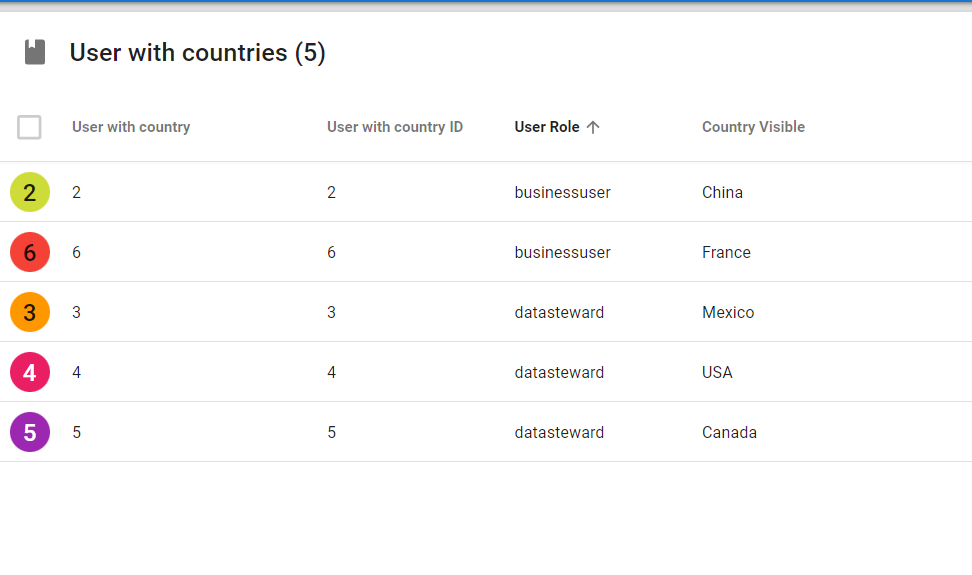 While entering entries in this newly created table, we need to type or select roles.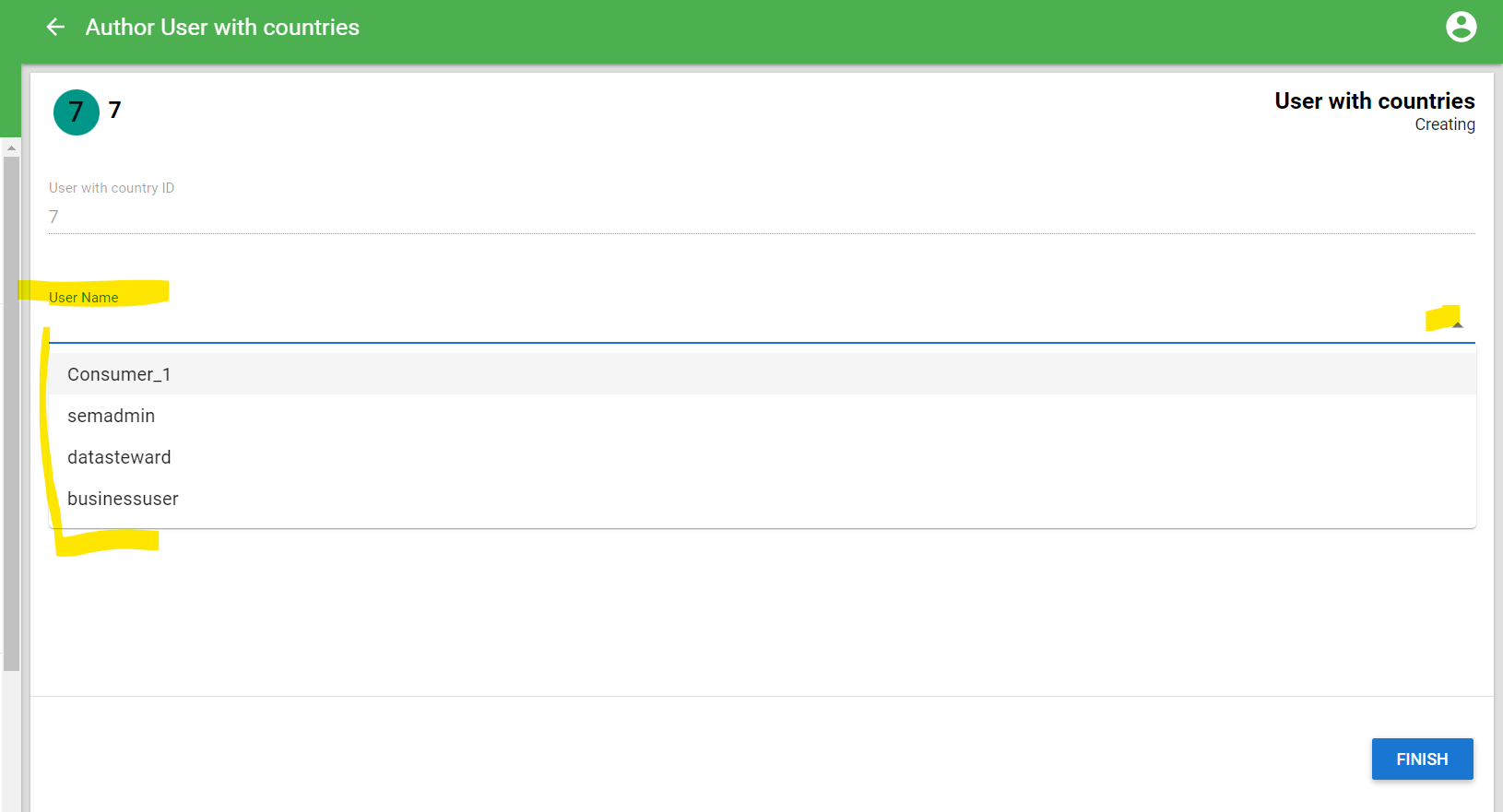
Of course, selecting them from a dropdown is much more user-friendly.
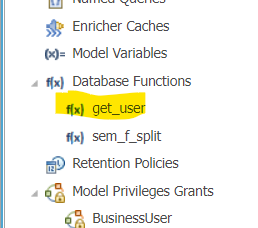
To achieve this, we'll need to create a function to fetch the roles from the DB.
Here is an example:
Here is the code to get users from DB:-

CREATE OR REPLACE FUNCTION semarchy_product_retail_mdm.get_user()
 RETURNS text
LANGUAGE plpgsqlAS
$function$
declareuser_list text ;
  BEGIN
  select string_agg(username,';')into user_list from semarchy_repository2.idm_user ;
    return user_list;
        END;
$function$;;
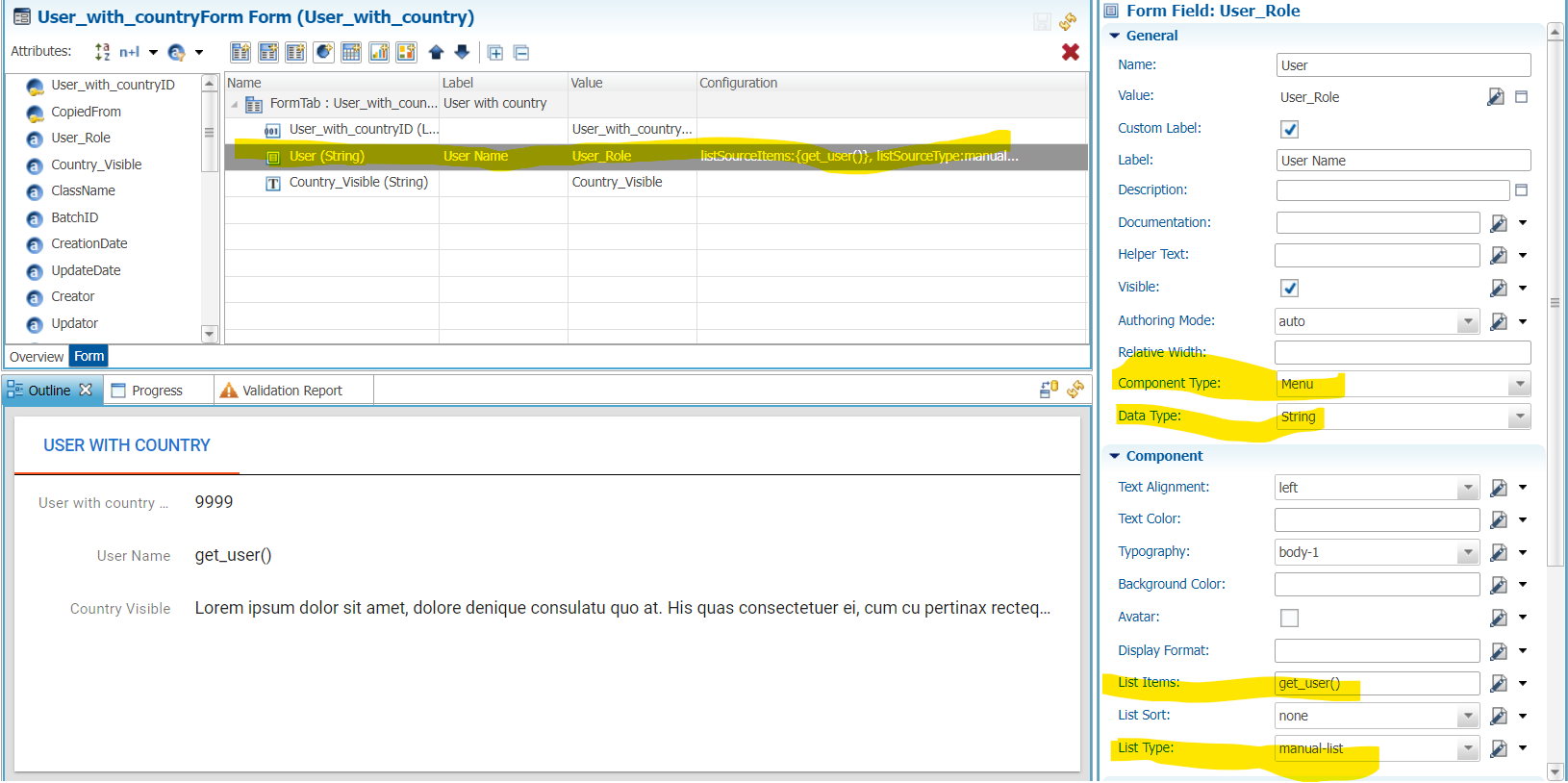
- Go to the form of the newly created entity (here user_with_country).
- Here we want the roles to appear in a dropdown.
- So change the Component type to Menu and call the function in the List Items (select SemQL, click on the pencil button and select the function which is available in the custom function folder):
- Implement the new query:
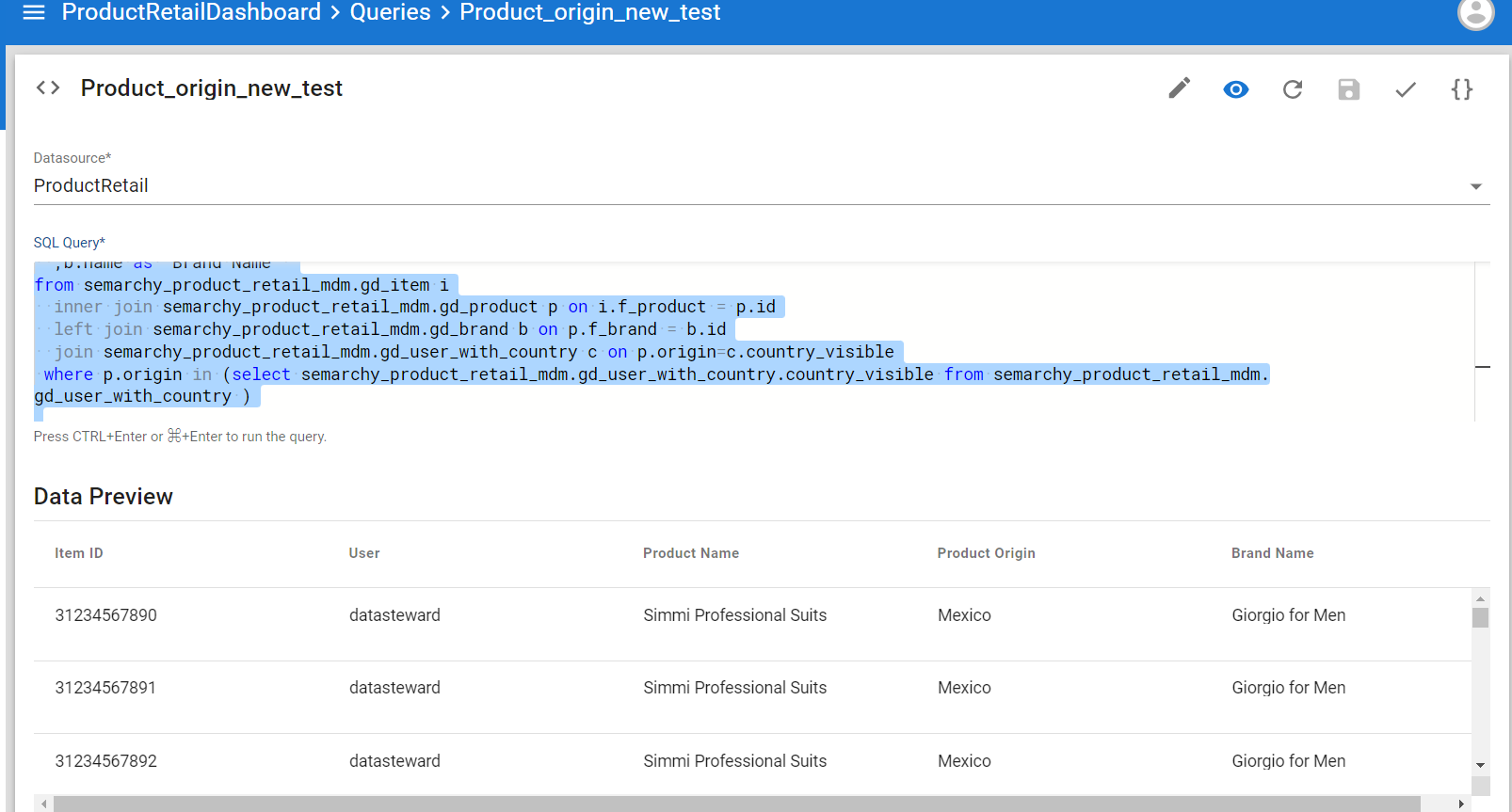 Here is the one for our example:
Select i.upc as "Item ID", c.user_role as "User" ,p.name as "Product Name" ,case when p.origin is not null then p.origin else 'Unknown' end as "Product Origin" ,b.name as "Brand Name" from semarchy_product_retail_mdm.gd_item i inner join semarchy_product_retail_mdm.gd_product p on i.f_product = p.id left join semarchy_product_retail_mdm.gd_brand b on p.f_brand = b.id join semarchy_product_retail_mdm.gd_user_with_country c on p.origin=c.country_visible where p.origin in (select semarchy_product_retail_mdm.gd_user_with_country.country_visible from semarchy_product_retail_mdm.gd_user_with_country )
- Create a new chart by using the previous query:
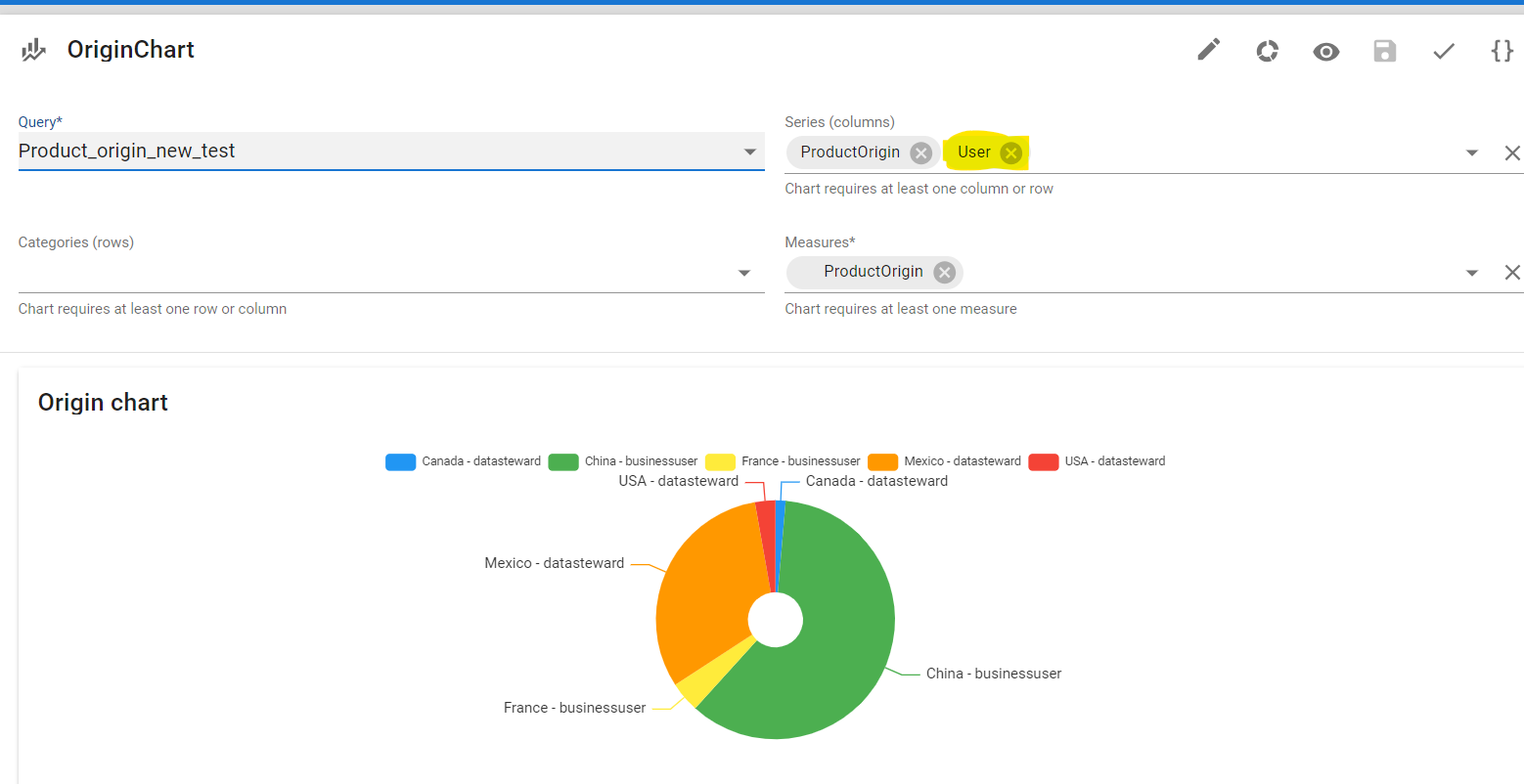
- Create a new dashboard with the previously created charts. Don't forget to add the needed dashboard parameters:
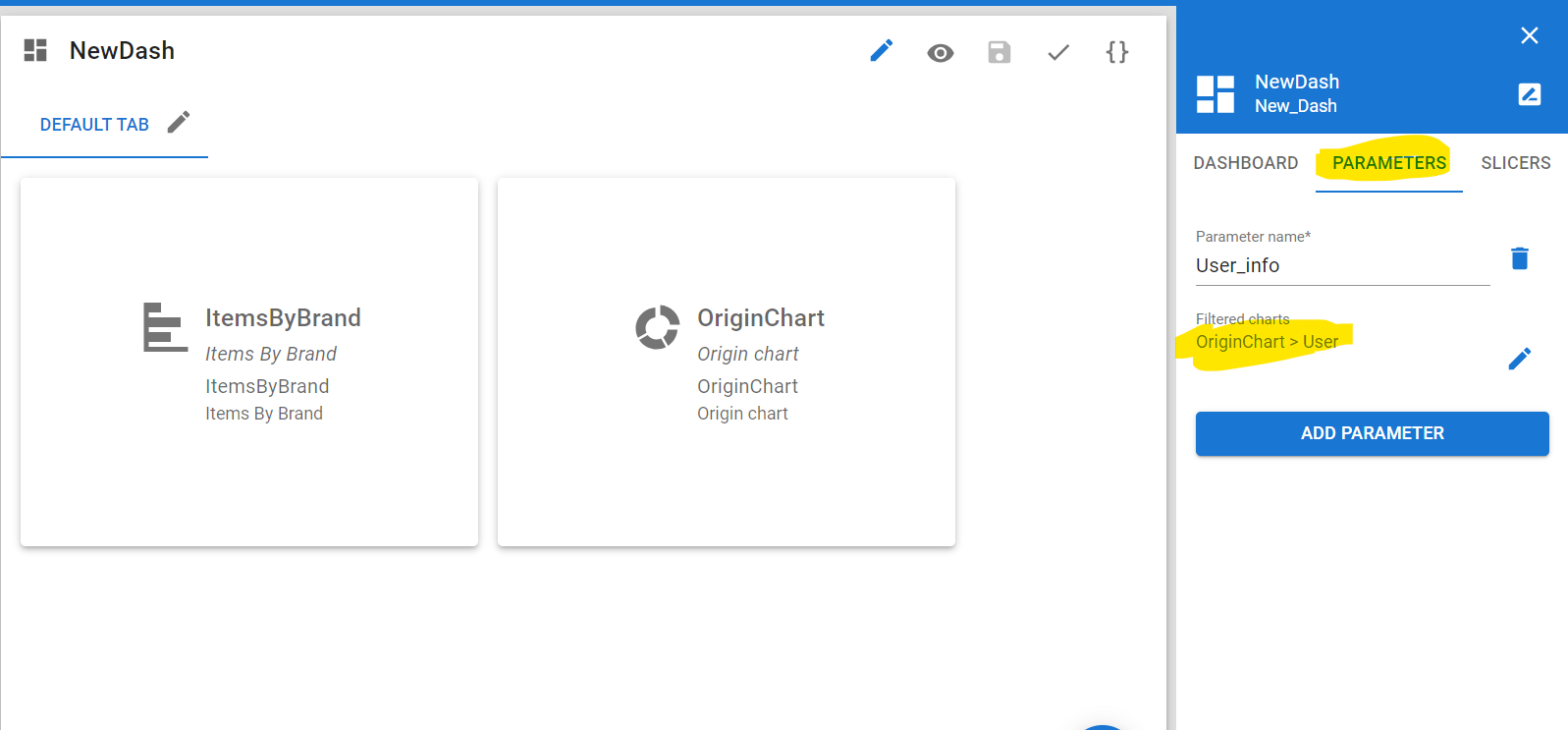
- Now we go to the folders and actions of the model. And browse to the dashboard:
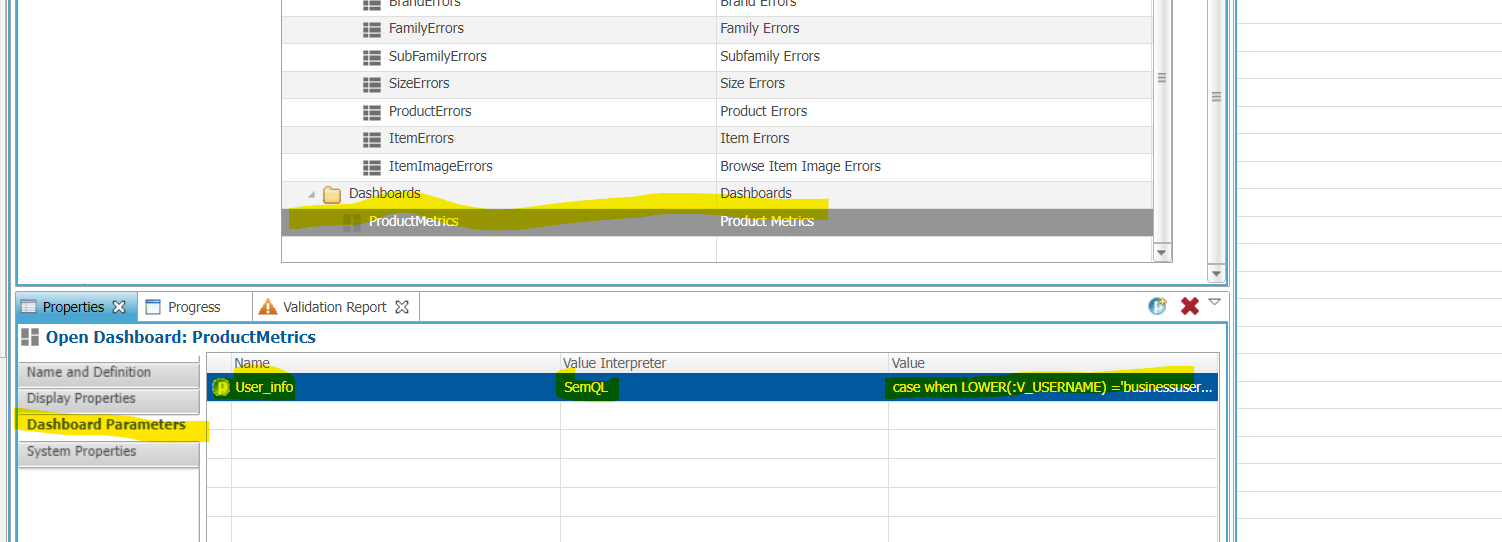
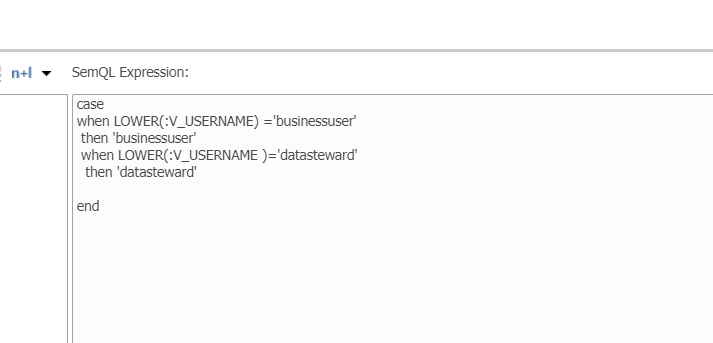
- Add the new parameter and enter the required value:
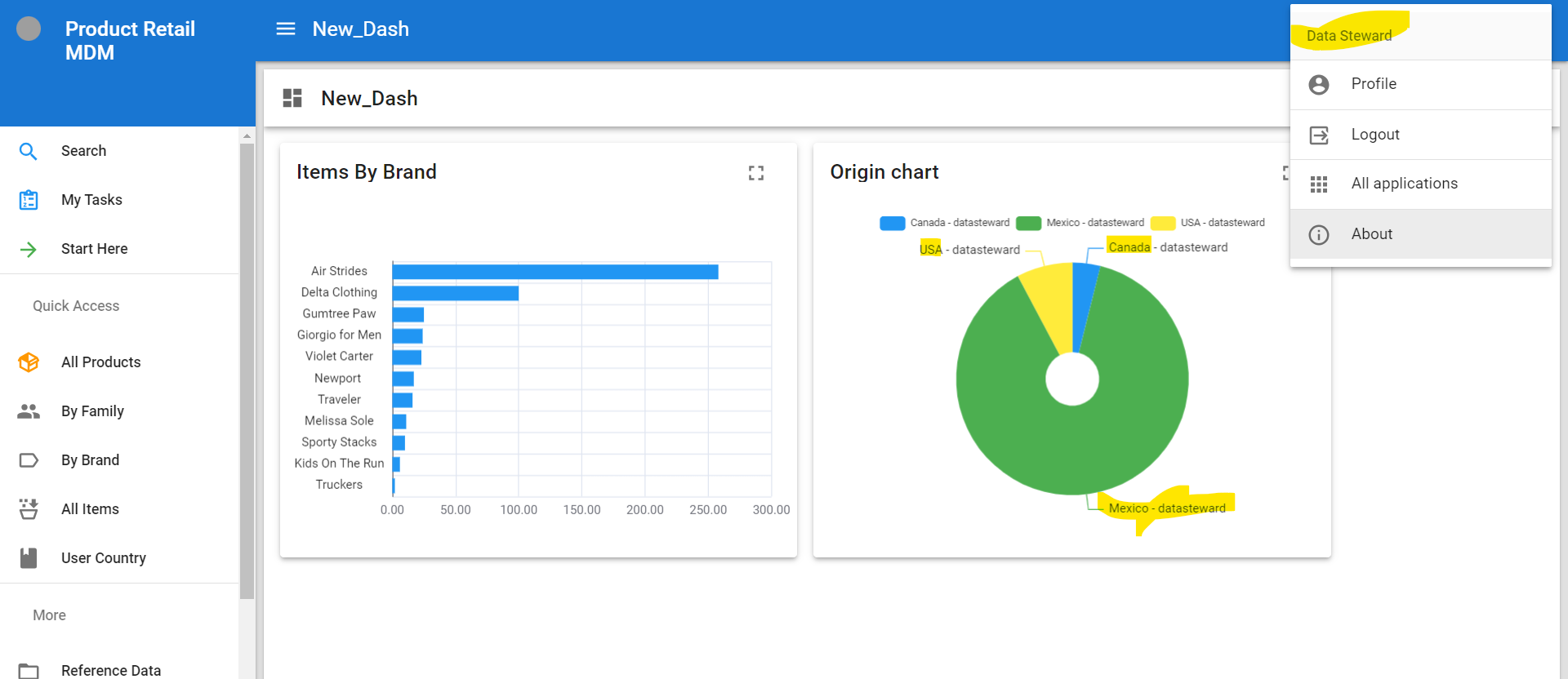
Application test
- For the Data Steward role:
- For the Business User role: