
Need
In some use cases, an application must redirect users from Semarchy xDM to an external system (e.g., Power BI, a third-party application, or a custom portal).
The standard Open URL feature allows configuration of a static URL.
However, challenges arise when:
- The external URL changes frequently (e.g., new App ID, tenant ID, environment switch).
- Different environments (DEV / TEST / PROD) require different target URLs.
- The external system URL must be maintained independently from the xDM configuration.
- You want to avoid modifying and redeploying the xDM model every time the external URL changes.
Example: an Open URL action pointing to a Power BI application: https://app.powerbi.com/Redirect?action=OpenApp&appId=...
Hardcoding such URLs directly in xDM can become difficult to maintain.
The objective is to make the external URL configurable and maintainable without frequent model changes.
Summarized Solution
Instead of configuring the final external system URL directly in xDM:
- Create a lightweight HTML redirect file.
- Host this HTML file on a web server.
- Configure xDM’s Open URL action to point to this HTML file.
- Maintain the actual external system URL inside the HTML file.
This creates a "redirect bridge":
- xDM > HTML file > External system.
- URL changes are handled in the HTML file only.
Detailed Solution
1. Create the HTML Redirect File
Create a simple HTML file (for example: redirect.html).
Basic Redirect Version (JavaScript) example:
<!DOCTYPE html>
<html>
<head>
    <title>Redirecting...</title>
    <meta charset="UTF-8">
    <script type="text/javascript">
        // Define the external system URL here
        var targetUrl = "https://app.powerbi.com/Redirect?action=OpenApp&appId=YOUR_APP_ID&ctid=YOUR_TENANT_ID";
        // Perform redirect
        window.location.replace(targetUrl);
    </script>
</head>
<body>
    <p>Redirecting to external application...</p>
</body>
</html>
Alternative version (Meta Refresh) example:
<!DOCTYPE html>
<html>
<head>
    <title>Redirecting...</title>
    <meta charset="UTF-8">
    <meta http-equiv="refresh" content="0; url=https://external-system-url.com">
</head>
<body>
    <p>Redirecting...</p>
</body>
</html>
The JavaScript approach is generally more flexible.2. Host the HTML File
Deploy the HTML file on a web server accessible to users, for example:
- Internal web server (e.g., IIS, Apache, NGINX).
- Application server.
- Cloud storage with static website hosting.
- Reverse proxy server.
Example hosted URL: https://mycompany.com/redirect/powerbi.html
This URL will remain stable, even if the external Power BI App ID changes.
3. Configure Open URL in xDM
In Application Builder > Open URL:
- Set URL to the hosted HTML file: https://mycompany.com/redirect/powerbi.html
- Set Target: New Browser Tab, Same Browser Tab, Embedded Editor without Title, or Embedded Editor with Title.
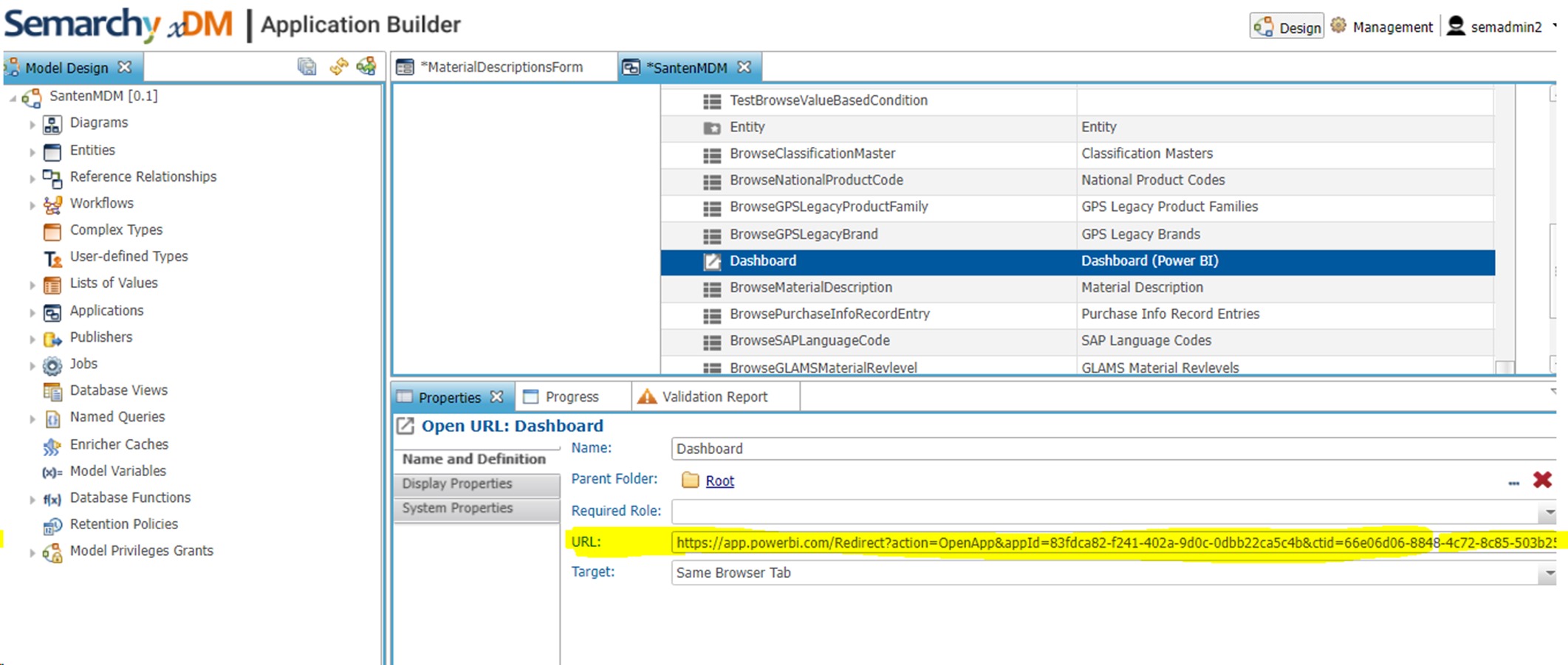
Now, xDM only points to the redirect file, not the external system directly.
4. Maintaining the External URL
When the external URL changes (e.g., new Power BI App ID):
- Update the targetUrl value in the HTML file.
- No change is required in xDM.
- No model redeployment is needed.
This significantly reduces maintenance effort.