
Need
This article explains how to configure Display Cards in Collections within Semarchy xDM so that a custom collection can be displayed through a Business View in the application UI.
For additional details, refer to the Semarchy xDM documentation.
Summarized Solution
To configure Display Cards in Collections:
- Create a Collection.
- Create a Business View using the collection.
- Configure the Business View transitions and browsing collection.
- Add the Business View to the application through an Action.
- Save and refresh the UI to make the Display Card available.
Detailed Solution
1. Create a new Collection. You can use the documentation.
2. Once the new Collection is created. You can add the new collection to a new business view.
3. Right Click Business View and select add new Business View.
4. Set a new name and select Next: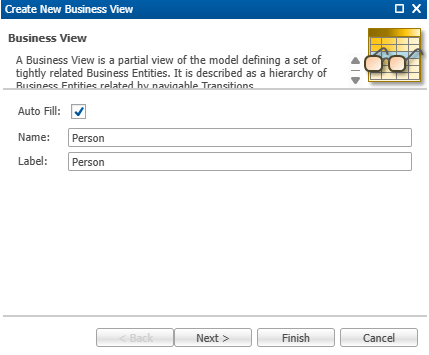
5. Select Browsing Form.
6. Select Transitions.
7. Select Finish.
8. Navigate to Transitions.
9. Under Properties - Display Properties select the Customized Display Card: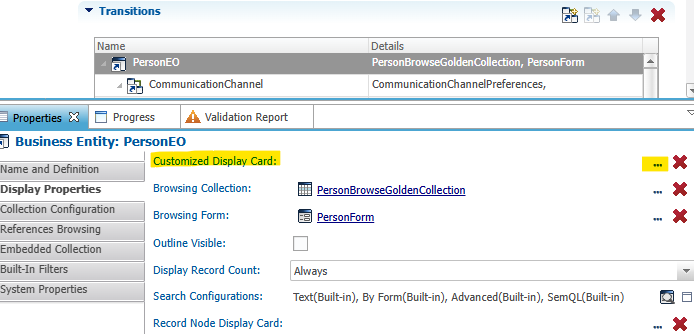
10. Save the new Business View.
11. Navigate to the Applications to display the new Business View in the UI.
12. Navigate the application and expand the window.
13. Open Folders and Actions.
14. Add a new Action.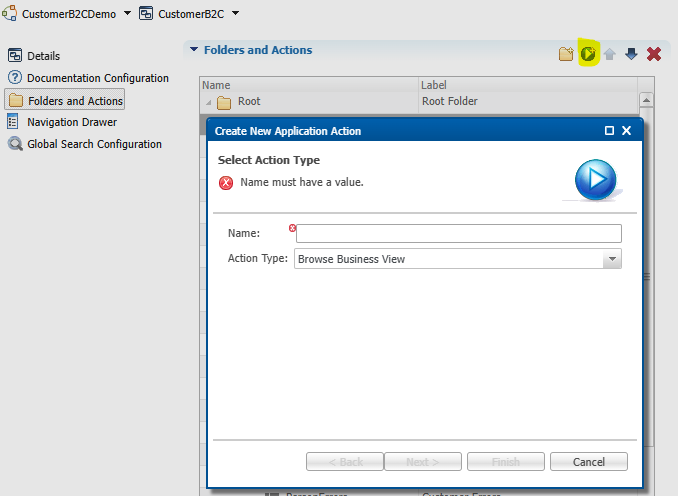
15. Name the new action and select Next.
16. Select the previously created business view: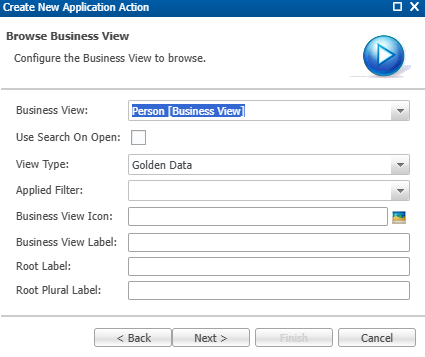
17. Provide a label and finish.
18. Save the new action and refresh UI.