
Need
This article explains how to configure references display cards in a form within Semarchy xDM.
Summarized Solution
To add references display cards to a form:
- Create the required Display Cards.
- Open the target form.
- Add the FDN attribute to the form.
- Configure the attribute’s Display Properties.
- Select the Display Card to use.
- Repeat the process for each additional Display Card.
- Save the App Builder and refresh the UI.
Detailed Solution
1. Create a display card.
2. Navigate to forms.
3. Under form open the form object.
4. Select the FDN attribute you will add to the form: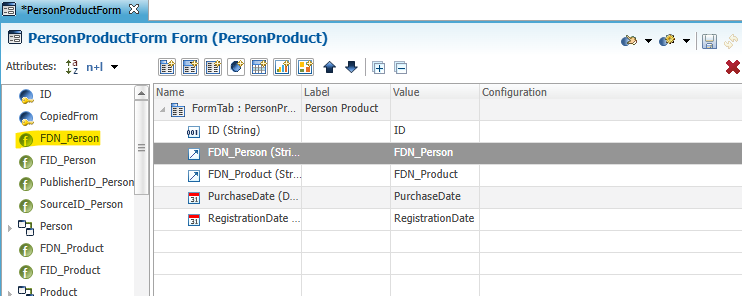
5. Drag and drop the FDN attribute and then navigate to the properties tab below.
6. Browse to the Component section.
7. Select the "…" to add a Display Card: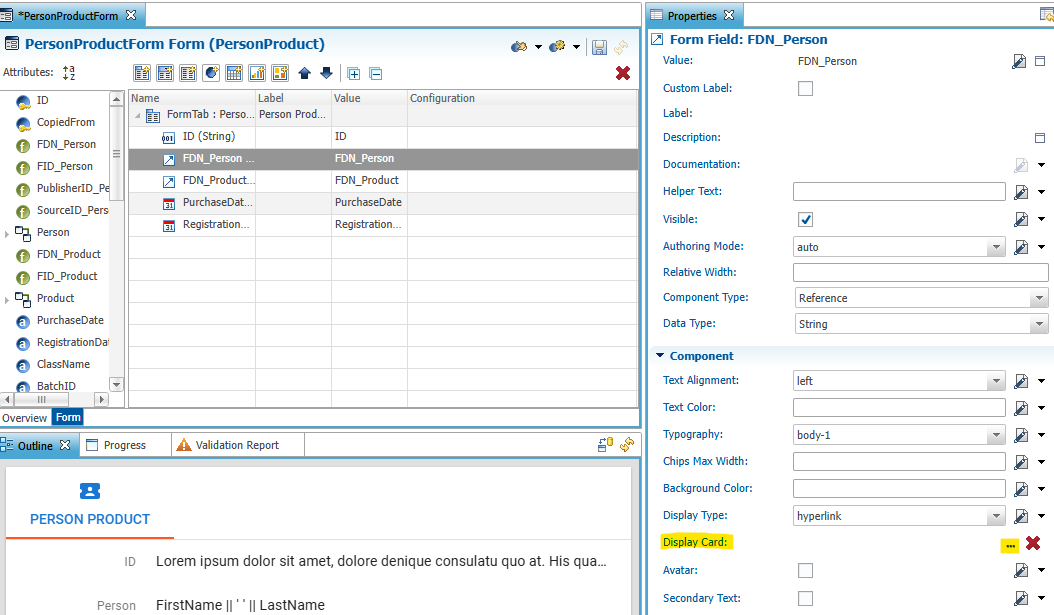
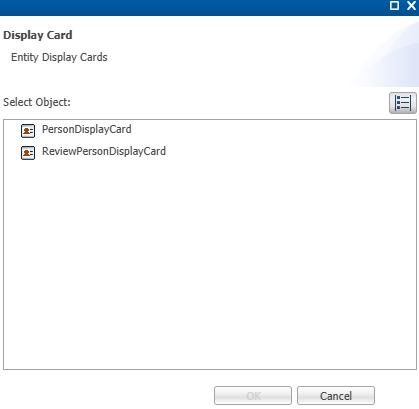
8. You should see a list of display cards that are available for this form:
9. Repeat steps 1-8 to add additional display cards.
Once the App Builder is saved, you can navigate to the UI and see the four display cards created in the form.