
Need
The Global Search is often the main entry point of an xDM application for:
- Data browsing.
- Quick record lookup.
- Authoring access.
- Operational workflows.
A properly configured Global Search allows users to:
- Reach relevant records quickly.
- Avoid unnecessary navigation.
- Improve productivity.
Note:
For advanced or complex search requirements, you can use specific Search Forms inside Business Views.
Summarized Solution
To configure Global Search:
- Go to the Applications menu in Model Design.
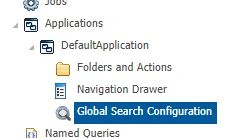
- Select the Business Views to be scanned during search.
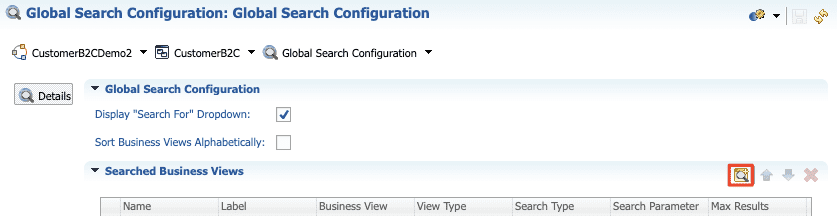
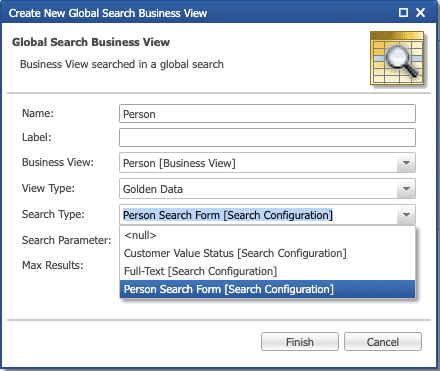
- For each Business View, choose:
- Full-Text Search (all searchable attributes), or
- A specific Search Form.
- Ensure Search Forms are properly declared and enabled.
- Configure additional options such as:
- "Search For" dropdown visibility.
- Business View sorting behavior.
Once configured and deployed, the Global Search will reflect these settings.
Detailed Solution
1. Create or edit the Global Search
Global Search is configured at the Application level:
- In Model Design, navigate to Applications.
- Select the application you want to configure.
- In the Global Search configuration, select which Business Views should be scanned during search (only the selected Business Views will be queried when users perform a Global Search). Carefully choose:
- Frequently used views.
- Views that represent main business objects.
- Views optimized for browsing.
- Avoid selecting too many Business Views unnecessarily, as this may impact performance.
2. Choose the Search Type per Business View
For each selected Business View, you can configure how the search operates:
- Full-Text Search: searches across all searchable attributes of the underlying entity.
- Is simpler to configure.
- Is suitable for general-purpose searching.
- Use a Specific Search Form: instead of searching all attributes, you may select a Search Form.
- More controlled search behavior.
- Filtering on specific attributes.
- Complex search criteria.
- Better performance tuning.
3. If the Search Form does not appear
If your Search Form is missing from the dropdown list, verify the following.
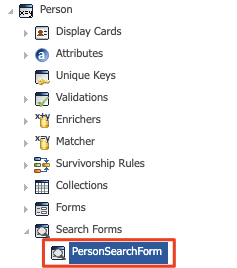
- Ensure search form is declared:
- Open the Entity.
- Go to the entity definition.
- Check the Search Forms section.
- Ensure your Search Form is declared.
- Enable it in search configurations:
- Open the Business Entity associated with your Business View.
- Open the Business Entity.
- Click on the link to the Root Business Entity.
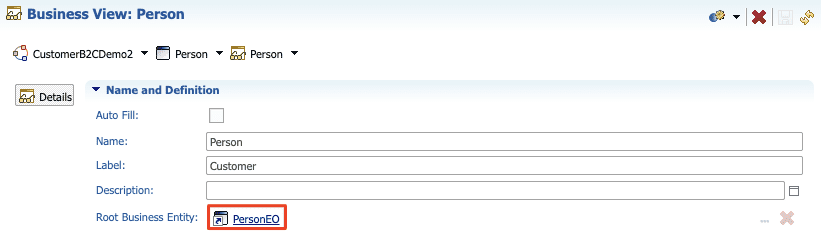
- Edit Search Configurations. You must:
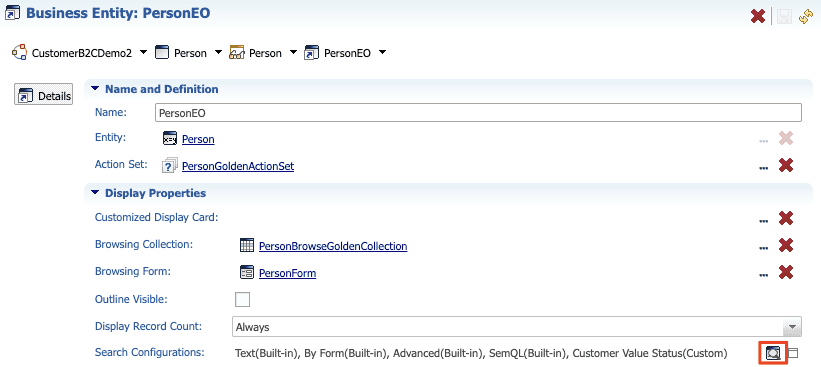
- Tick the checkbox in the Available column for your Search Form.
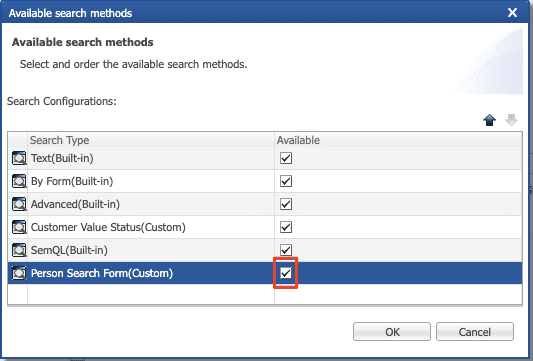
- If not marked as available, the Search Form will not appear in the Global Search configuration.
- Tick the checkbox in the Available column for your Search Form.
4. Additional Global Search Parameters
- Display "Search For" dropdown:
- If enabled: users can select which Business View they want to search in and it provides more control for advanced users.
- If disabled: search is performed across all configured Business Views automatically.
- Sort Business Views Alphabetically:
- This setting defines how Business Views appear in the Global Search selection.
- Whether they are sorted alphabetically or by configuration order.
- Useful for improving usability in large applications.
5. Validate and deploy the model
Once everything is setup, validate the model and redeploy.
Performance considerations
When configuring Global Search:
- Limit the number of Business Views scanned.
- Avoid unnecessary Full-Text Search on very large entities.
- Prefer optimized Search Forms for high-volume entities.
- Ensure appropriate indexing at the database level.
A poorly configured Global Search may lead to slow response times.